Line width
Version availability
The numeric input and 1 px slider steps are available in 0.4.0 and later. Exact per-note widths are also supported in earlier versions.
Adjust the reading column in Reading View, Live Preview, and Source mode. Enable Obsidian's Settings → Editor → Readable line length, then use Line Width in the plugin settings or the desktop status bar slider. In settings, type an exact whole number and press Enter or leave the field to apply it; the input and slider stay in sync. Both sliders adjust in 1 px steps. The default is 900 px, with a range of 500–2000 px; use the settings reset button or click the status bar value to reset it.
The value is the maximum column width. In Reading View, a 1306 px pane with 32 px of padding on each side has room for about 1242 px of text. A 1400 px setting reaches its full width when the pane is wide enough.
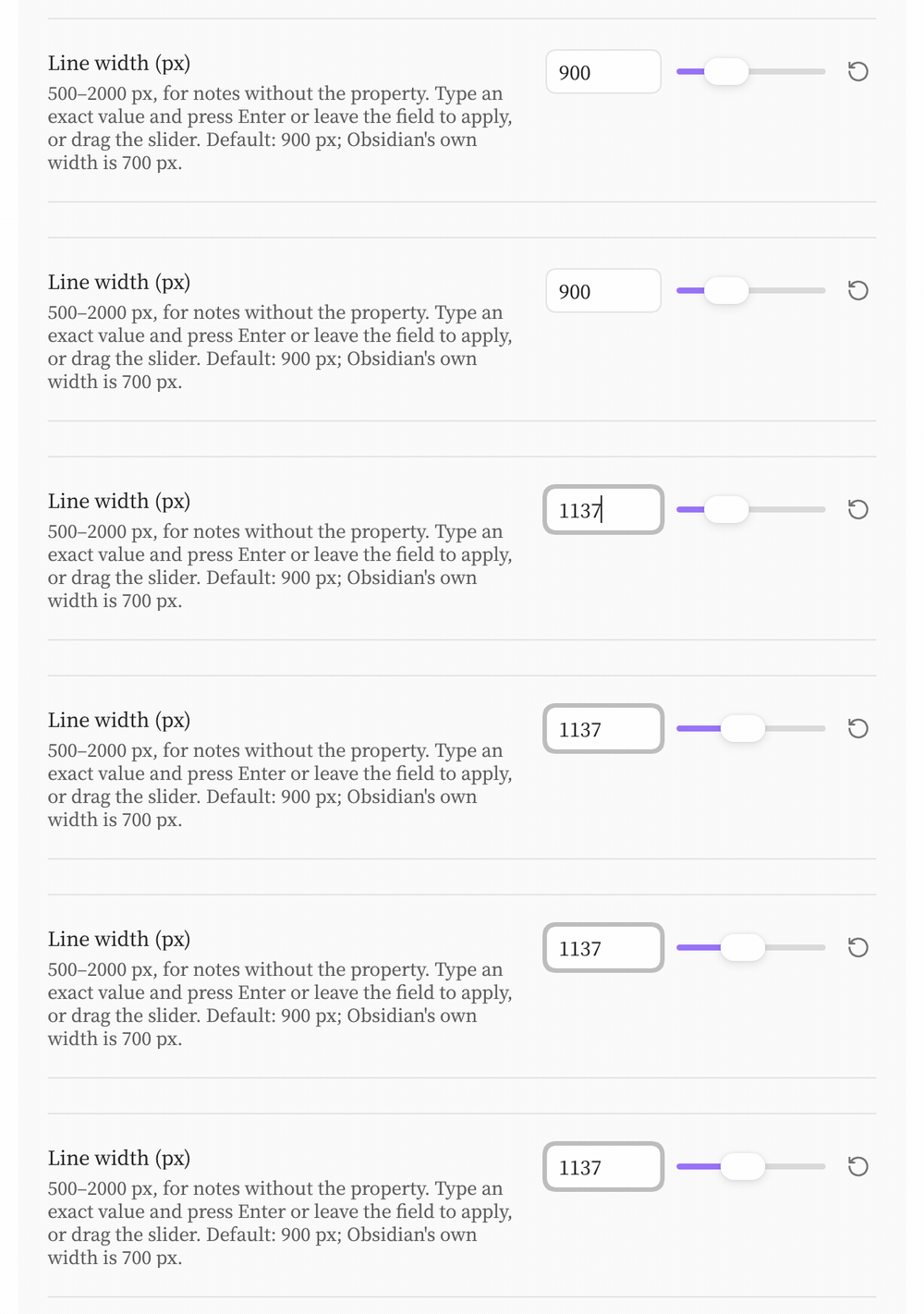
In Settings → Patches → Line Width, replace 900 with 1137 and press Enter. The slider moves to the exact value; the reset button returns both controls to 900 px.
Override the width for one note:
---
patch-line-width: 1200
---
A quoted value such as "1200px" also works. Each pane uses its note's width. The status bar disables the slider for a note with an override; an invalid value is ignored and shown in red, with a tooltip explaining the range.
Settings
| Setting | Default | Effect |
|---|---|---|
| Enabled | On | Applies Patches’ readable width to Markdown panes. |
| Line width | 900 px | Global fallback for notes without a valid override. |
| Show in status bar | On | Shows the desktop slider and reset value. |
A note with patch-line-width keeps its override when you change the global setting. If nothing changes, see width troubleshooting.