Mermaid diagrams
Use a patch-mermaid block to render a diagram with the Mermaid engine bundled with Patches. A standard mermaid block uses Obsidian’s own renderer.
Number the steps in a flowchart
Follow a note from its first draft to publication. The numbers show the order at a glance. During playback, a dot and a thicker line mark the active handoff.

```patch-mermaid
---
title: From draft to publication
config:
  layout: dagre
  flowchart:
    stepNumbers: true
    stepDuration: 1.5
    rankSpacing: 110
---
flowchart LR
  A[Write draft] review@--> B[Review changes]
  B publish@--> C[Publish note]
  review@{ step: 1 }
  publish@{ step: 2 }
```
Patches 0.5.0 bundles Mermaid 12.3.0, which introduced numbered flowchart steps. Keep layout: dagre in this example to show the badges. In Obsidian 1.15.1, the same source in a native block draws the three nodes and two static arrows. Obsidian documents Mermaid 12.1.0 syntax support in its Pele renderer. Mermaid flowchart steps · Obsidian’s diagram release notes
Match the note’s theme
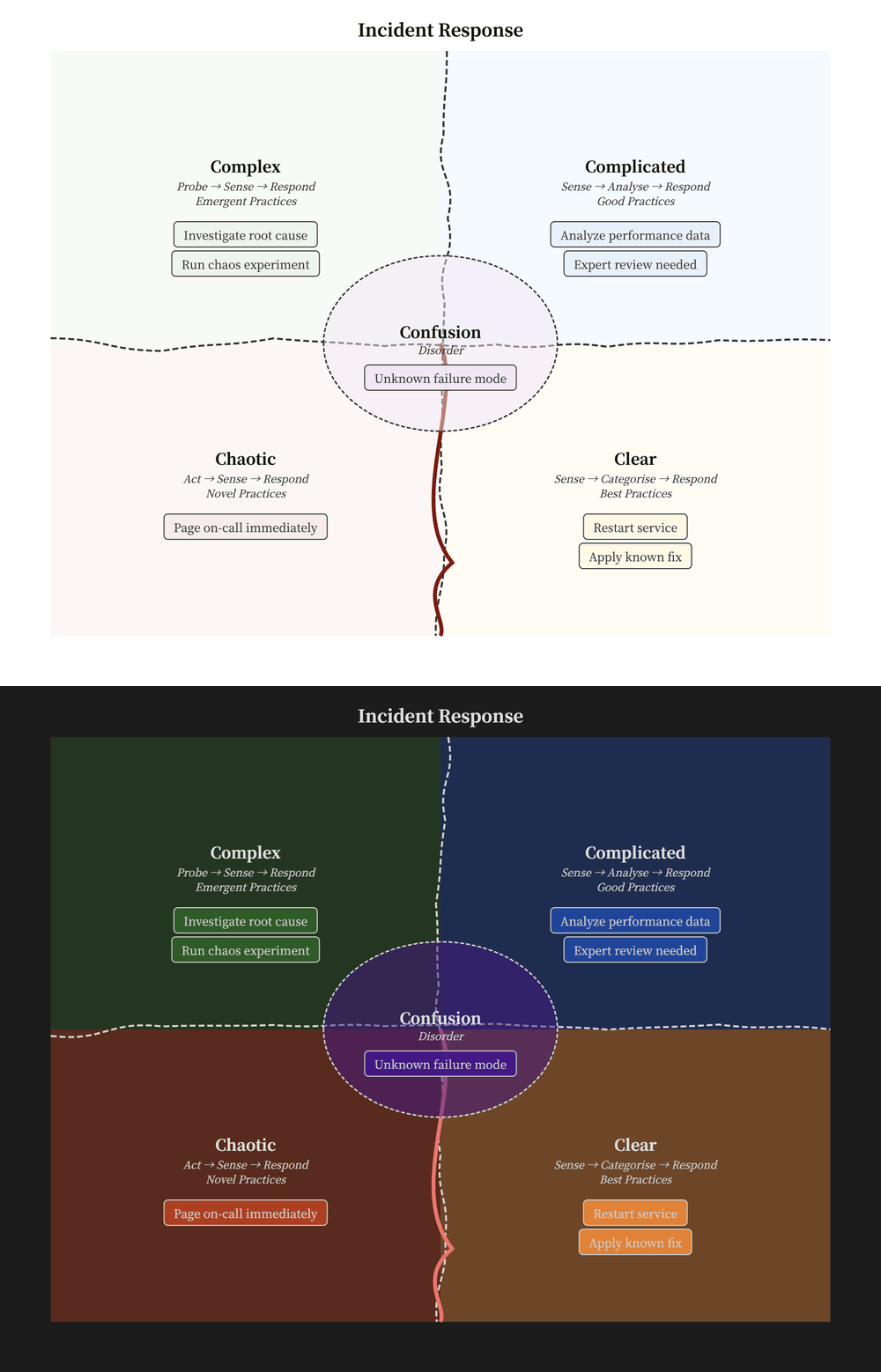
For example, organize incident response with a Cynefin diagram, introduced in Mermaid 11.16.0. This works with the default Bundled version and Strict security level:
```patch-mermaid
cynefin-beta
  title Incident Response

  complex
    "Investigate root cause"
    "Run chaos experiment"

  complicated
    "Analyze performance data"
    "Expert review needed"

  clear
    "Restart service"
    "Apply known fix"

  chaotic
    "Page on-call immediately"

  confusion
    "Unknown failure mode"
```
Diagrams follow Obsidian's theme and Mermaid font. Leave theme unset in diagram configuration to follow light and dark mode automatically.
| Setting | Choices |
|---|---|
| Mermaid version | Community: the bundled version is shown. Full: choose Bundled (default), Latest, or Custom (an exact version from 11.0.0 onward). Failed remote loads fall back to Bundled. |
| Security level | Strict (default) restricts diagram content and currently hides treeView icons. Loose allows additional content and interactions; use it only with diagrams you fully trust. Both modes sanitize the generated SVG before display. |
Some bundled icons, including material-icon-theme:folder-css and logos:chrome-web-store, currently render incompletely because of Mermaid's own icon filtering, even in Loose mode.
In the full build, remote Mermaid and ELK versions load from jsDelivr without an integrity check and run with full access to Obsidian. The community build excludes this remote loader and uses the code shipped with the plugin, even if old settings selected Latest or Custom. Simple Icons may still download icon data; see network and privacy.
Show the plugin's project structure with treeView. With Bundled selected, switch to Loose for this trusted example to display icons from the included material-icon-theme and logos packs:
```patch-mermaid
treeView-beta
    obsidian-patch/ icon(material-icon-theme:folder-project)
        src/ icon(material-icon-theme:folder-src)
            features/ icon(material-icon-theme:folder-plugin)
            main.ts icon(material-icon-theme:typescript)
        manifest.json icon(material-icon-theme:json)
        styles.css icon(material-icon-theme:css)
        package.json icon(logos:nodejs-icon)
```
Check diagrams in this note
In 0.5.0, run Patches: Check diagrams in this note from the command palette in a Markdown note. It uses the same Mermaid version as the patch-mermaid renderer. In the editor it checks unsaved edits. In Reading view it checks the saved note. It includes diagrams in lists and callouts. Other fence languages, including native mermaid, are skipped.
The report shows the runtime version and the number of diagrams checked. Each error starts as one row with its diagram number and line in the note. Jump opens that line in the same pane. Details expands the parser’s full message for that row. A line marked opening fence takes you to the start of the diagram when Mermaid’s position cannot be mapped reliably. After editing the note, run the command again for current locations. Layout errors appear when the diagram renders.
Which build should I use?
Use the Community build for normal installation. It bundles Mermaid with the plugin and updates through Patches releases. Full is an optional manual source build; its branch documentation covers the extra runtime choices. See network and privacy.
For a personal build, you can choose an exact Mermaid version at build time. Official release testing covers the bundled version. Test a different version with your diagrams in a development vault before using it in your main vault.